![Favicon.png]](https://help.fieldcontrolanalytics.com/hs-fs/hubfs/Favicon.png?height=50&name=Favicon.png)
Overview
The FCA Badge Printing Agent performs two essential tasks: it regularly refreshes the printers to ensure they are in optimal working condition, which includes performing routine maintenance checks and updating printer settings as necessary. This proactive approach minimizes downtime and enhances the efficiency of badge printing operations. Additionally, the agent efficiently handles any pending badge print requests by monitoring the queue and prioritizing tasks based on urgency and user requirements. This dual functionality not only streamlines the badge printing process but also ensures that users receive their badges promptly.
Visibility
Any user who has the FCA badge printing software installed on the FCA provided laptop can access the system.
Instructions
Badge printing agent has 3 recurring functions
-
Refreshing Printers
This process initiates automatically when the application starts and occurs at a default interval of every 15 minutes. During this time, the agent updates the printer details—including status, state, remaining ribbon, and the last used date and time—within the database. Users can view this information in the Freedom web application, where the printers tab displays the most current details about each printer. -
Processing pending badge printing requests and printing to available printers.
This process occurs every minute but does not start automatically. To initiate this recurring task, users must manually press the Start button located on the home screen. -
Printer Status Visibility and Logs
The Badge Print Agent (BPA) gives FCA staff real-time visibility into the status and performance of the badge printing system, enabling proactive monitoring, rapid identification of issues, and review of detailed printer activity logs.
Accessing the FCA Badge Printing Agent
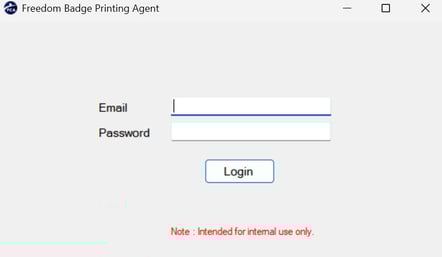
Log into the Badge Printing Agent with your platform login credentials. Icon should be pinned to your taskbar on the laptop.
Main Tab
Click Start to initiate the recurring process for pending requests. This allows FCA Admins to view statuses and logs
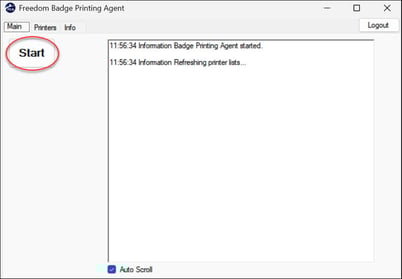
You must click Start anytime the laptop is shutdown, restarted, etc.
Printers Tab
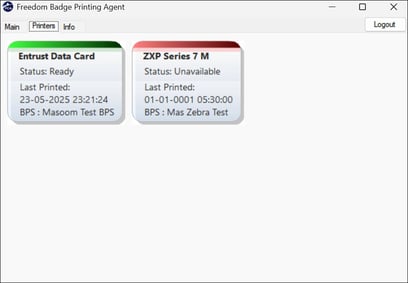
The Printers tab provides a real-time overview of each printer's status: a green indicator signifies that the printer is online and operational, while a red indicator indicates that the printer is offline and unavailable.
Info Tab
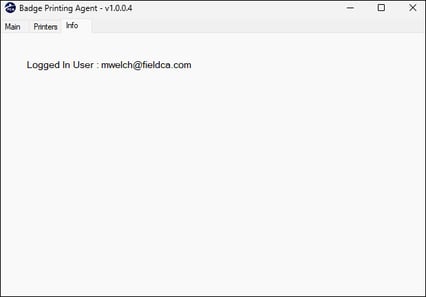
The Info tab should which user is currently logged into the badge printing agent (BPA).