![Favicon.png]](https://help.fieldcontrolanalytics.com/hs-fs/hubfs/Favicon.png?height=50&name=Favicon.png)
Overview
This workflow guides onsite representatives (OSR) through the FCA drug testing portal to process drug test screens. Use this guide as a step-by-step reference while navigating the portal and completing the testing workflow. Follow the instructions in order and confirm that you are working with the correct worker or applicant before proceeding.
Key Terms
|
Term |
Definition |
|---|---|
|
Medical Review Officer (MRO) |
The user responsible for reviewing and entering drug test results that require medical review |
|
Non-Conclusive |
A drug test result that requires MRO review before a final result is recorded |
|
Sent to Lab |
A drug test result that has been sent for laboratory analysis and is awaiting a final result |
|
Third-Party Result |
A drug test result from a provider outside FCA facilities that a worker uploads for admin approval |
|
Random Test |
A drug test requested by a client for workers selected through the random test list generator |
|
Post-Accident Test |
A drug test ordered for a worker following an incident on a project |
|
Renewal Test |
A drug test prompted automatically when a worker's badge nears expiration |
Accessing the FCA Drug Testing Portal
FCA OSRs will receive platform login information from your manager.
FCA Express users will receive platform invitation.
Login Credentials & URL Link
Username: FCA site email address
Password: provided by manager
FCA Drug Testing Portal Link: https://freedom.fieldcontrolanalytics.com
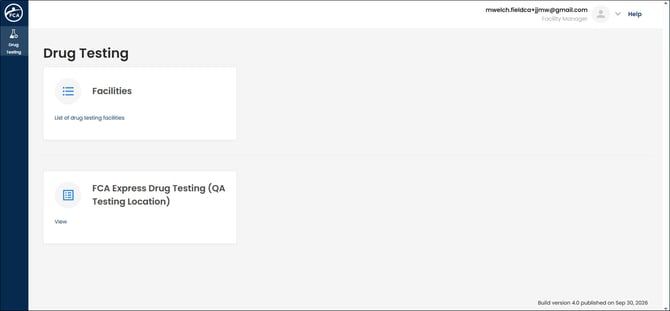
Facility Information
The top widget Facilities contains information pertaining to your facility.
-
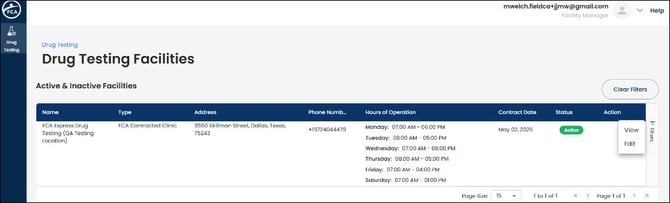
Facility Managers will have View and Edit capabilities
- under the Edit option, facility managers can Add or Delete users to the platform
-
Facility users will have View only capabilities
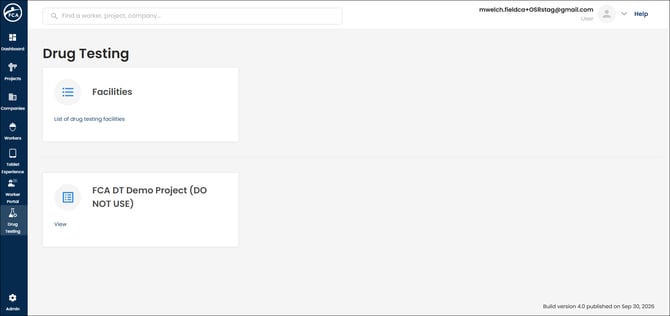
Each facility has a designated widget used to process drug testing for FCA.
OSRs will see only the facility or facilities to which access has been granted by FCA or a facility manager
Facility Portal
Click on the widget to access the drug testing portal for a facility
There are five (5) status columns for each facility.
- Scheduled
- In Progress
- Missed Appointment
- Tested
- No Show
Scheduled Drug Test
All workers must schedule a drug test during the worker onboarding process. If a worker has not scheduled their drug testing appointment, OSRs can access the worker's profile and Book an Appointment. Once the appointment is booked, the worker will be visible in the Scheduled tab
Each column will default to the Current Day list of scheduled workers.
- OSRs can use the dropdown date range filter to adjust the list view based on date options
- All Times
- Current Day
- Previous Day
- Last 7 Days
- Date Range
If a worker scheduled for a specific day does not make the appointment on his/her scheduled day, the Scheduled screen will automatically move to the Missed Appointment column.
If a worker does not arrive at the facility within 30 days of the Scheduled appointment, his/her screen will move to No Show.
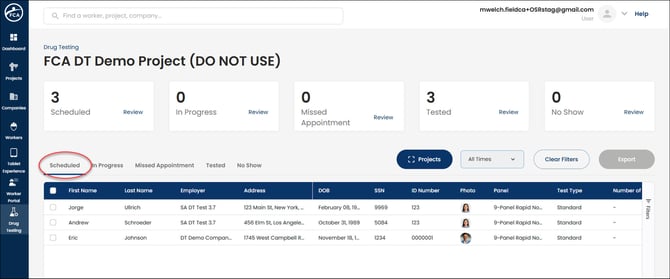
In order for an OSR users to properly identify the worker, FCA has provided information to Verify each worker.
- Worker/applicants first & last name
- Employer
- Address
- Date of Birth
- Last 4 SSN
- Government Issued ID Number
- Photo of Worker/Applicant
- click on the photo to enlarge for better visibility
- Drug Test Panel Type
- Test Type
- Standard
- Renewal
- Random
- Post Accident
- Scheduled Date
Actions
Under the Scheduled column, an OSR has three (3) options.
View
Clicking View allows an OSR to view all worker information in a single card view instead of the grid view.
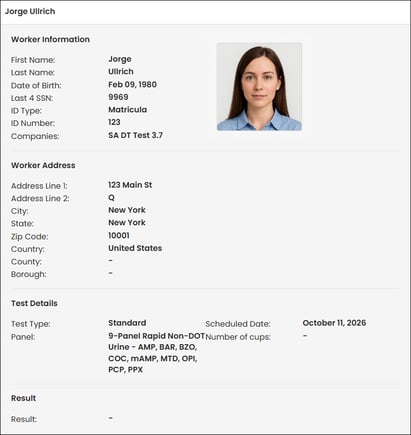
Edit
Should a worker/applicant leave the facility/project prior to being verified, an OSR can use the edit option to update the screen to Cancelled by Worker. This removes the screen from the facilities Scheduled list if the worker is not planning on returning.

Verify
A worker must be verified in order to move through the screen process in the portal.
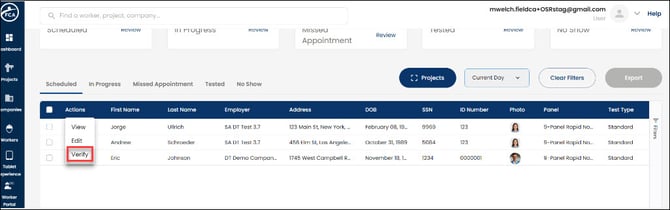
Click Verify under the action options, the worker will automatically move to the In Progress column.
In Progress
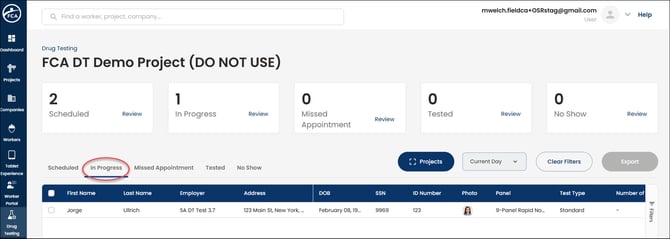
Under the In Progress tab, an OSR has three (3) options.
View
Clicking View allows an OSR to view all worker information in a single card view instead of the grid view.
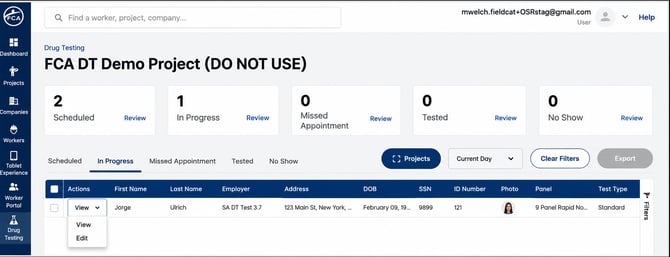
Edit
Click Edit to update drug screen results
Enter Number of Cups used for the screen
Use the drop-down to enter the screening result
-
Negative
- screen will automatically move to the Tested tab with a Negative result
-
Non-Conclusive
- a non-conclusive result requires additional information in order to complete the screen
- image of the Chain of Custody
- Specimen ID Number from CCF
- FedEx Tracking Number
- potential positive panels to be tested by lab
- multi-select if more than one
- a non-conclusive result requires additional information in order to complete the screen
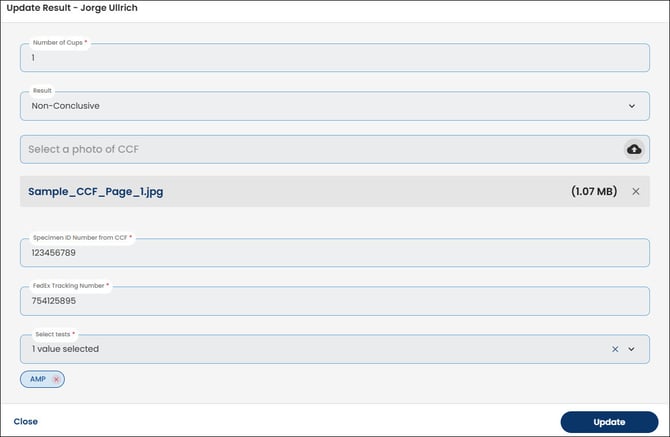
Click Update
Under Actions, click Complete
In order for a screen with a non-conclusive or invalid result to move from In Progress to Tested, you must click Complete in the action dropdown
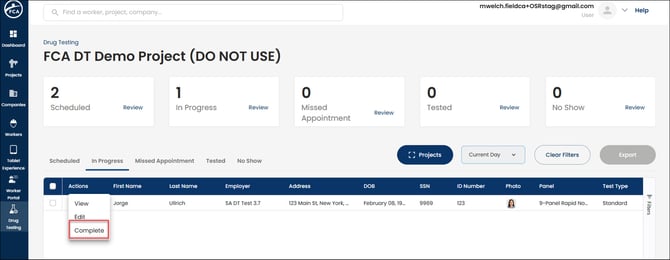
Once you mark the screen as complete, it will automatically move to Tested
Once a screen is marked Complete and under the Tested column, OSRs cannot make updates. All updates or error corrections must go through Customer Support.
-
Invalid
- a non-conclusive result requires additional information in order to complete the screen
- Insufficient sample amount
- Refusal to provide a sample
- Out of temperature range
- Adulterated sample
- Other
- Additional notes will be required to complete the screen pertaining to the reason for the invalid result
- a non-conclusive result requires additional information in order to complete the screen
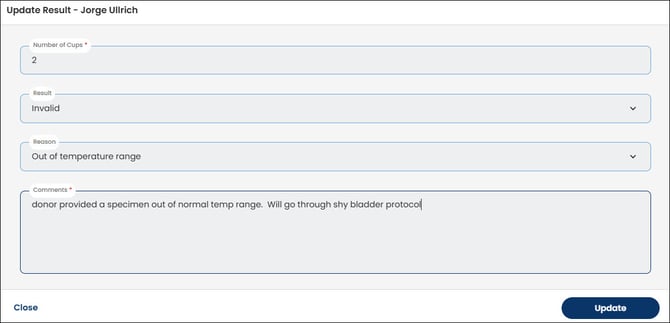
Click Update
Under Actions, click Complete
A worker has the option prior to an Invalid result being complete to follow shy-bladder protocol and provide a new sample. This would be a situation for Number of Cups to be more than 1.
Missed Appointment
If a worker does not show for a drug test on his/her scheduled day, the appointment will be moved to the Missed Appointment tab.
The appointment will stay available for processing for 30 days from the scheduled date.
If the worker arrives at the facility within the 30-dayday window, the OSR will follow the same process as if the worker was under the Scheduled tab.
- Verify the worker/applicant
- Screen will move to In Progress tab
- Update drug test result
- Complete screen
No Show
If a worker does not arrive at the facility to screen within 30 days of the scheduled appointment, the screen will automatically move to the No Show tab.
Once a worker's appointment is under No Show, you CANNOT screen a worker.
Workers can login to the FCA Worker App or Worker Portal and schedule another appointment, contact their employer to schedule another appointment on their behalf, or access the worker's profile to book another appointment.
All workers under No Show, must be turned away until another appointment is scheduled.
Tested
All screens will automatically move to the Tested tab once the OSR completes the screen.
OSRs have the option to View the screen, however, any edits need to be handled by FCA Customer Support.