![Favicon.png]](https://help.fieldcontrolanalytics.com/hs-fs/hubfs/Favicon.png?height=50&name=Favicon.png)
Overview:
This workflow guides admins through the Worker Portal registration process. It includes selecting the appropriate project and employer, completing the required onboarding sections, providing biometric consent and a photo, entering personal and contact information, adding trade and certification details, and completing the project consent form.
After the worker signs the consent form, a Welcome Aboard message identifies any outstanding requirements that must be completed before a badge can be issued. Workers can access their profile, view assignments, and access their e-badge.
Workers who are already registered on the FCA platform do not need to repeat the registration process. They can login to access their profile, sign new project consent forms, and access their e-badge.
Finding Your Projects Onboarding QR Code
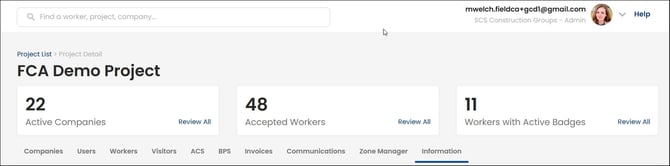
While viewing the appropriate project, select the Information tab.
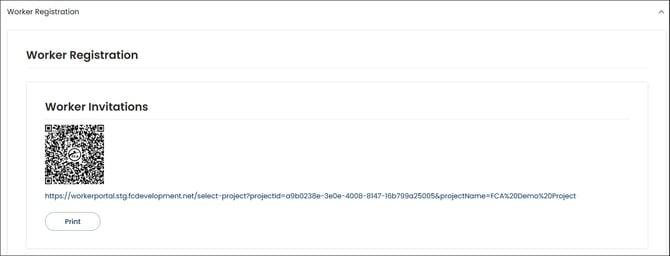
From there, select Worker Registration.
Your project’s Worker Registration QR code will display.
You can print this QR code so workers can scan it from their mobile devices and begin registration.
Admin Access the Registration Workflow
Select Worker Portal icon once you have logged into the FCA platform
Enter the PIN, then select Verify to display the Worker Status page
All Admins should enter “1234”
If desired, use the English/Espanol toggle to adjust the language
Confirm Wi-Fi status
-
If Wi-Fi is not connected, any information entered after the Company and Project have been selected will be uploaded when Wi-Fi reconnects
-
Supervisor Mode must be enabled for offline worker onboarding
- The Wi-Fi icon will display as green when connected
Select the Profile to display available modes and to edit the admin user's Profile
-
Admin Mode
-
My Profile
-
Supervisor Mode
- Logout
Status tabs
-
Pending
-
Processing
-
Incomplete
- Completed
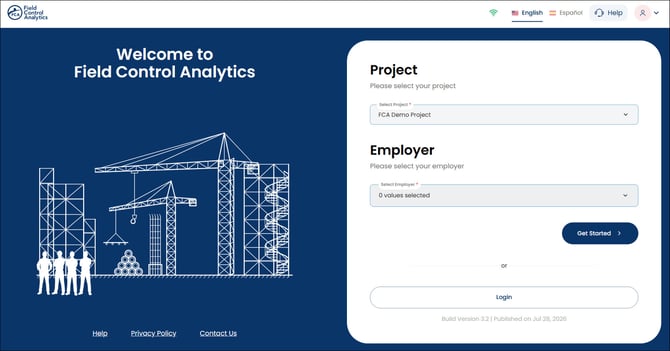
Click Select Project
-
Select desired Project and Employer, then select Get Started
The Projects display based on the user’s access and permissions.
Onboarding Sections
Navigate through all sections to register the Worker. Complete all required fields, then select Next.
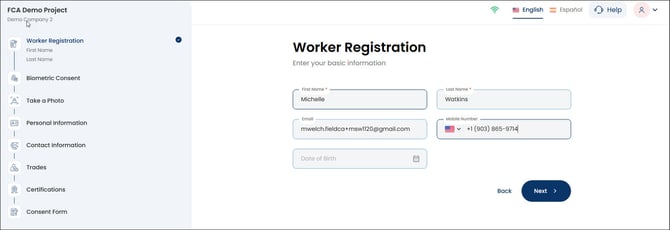
Worker Registration
-
Enter Worker's First Name, Last Name, Email Address and/or Mobile Phone Number; Date of Birth is optional.
-
Click Next
A Matching Profiles modal will display if a potential duplicate exists in the system.
- Select Proceed with selected worker if you realize the system discovered a duplicate.
- Select Add new worker if the Worker displayed is not a duplicate and you need to add a new Worker.
-
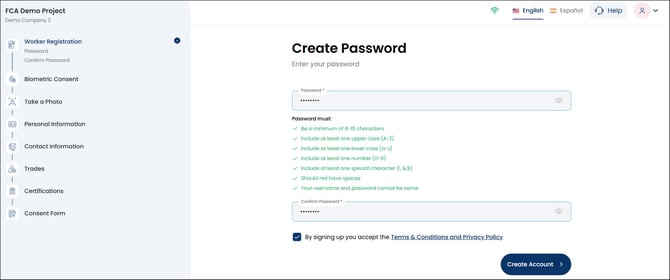
Create a Password, check the Terms & Conditions checkbox, then select Create Account.
Biometric Consent
-
Check the Biometric Consent checkbox
Take a Photo
-
Select Capture Photo
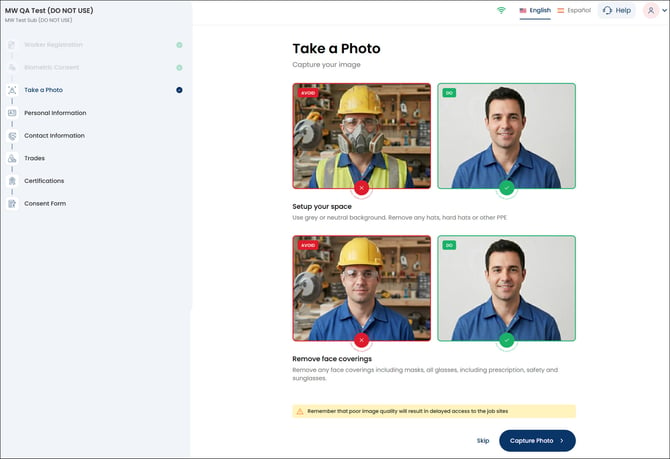
You can take a new photo or upload an existing photo.
Personal Information
-
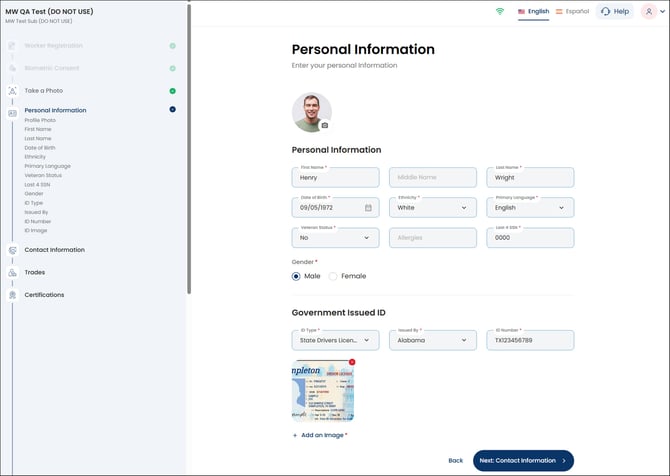
Complete personal information fields based on project requirements.
-
Any existing information will be pre-filled.
-
For the Government-Issued ID, you can take a new photo or upload an existing photo.
-
Contact Information
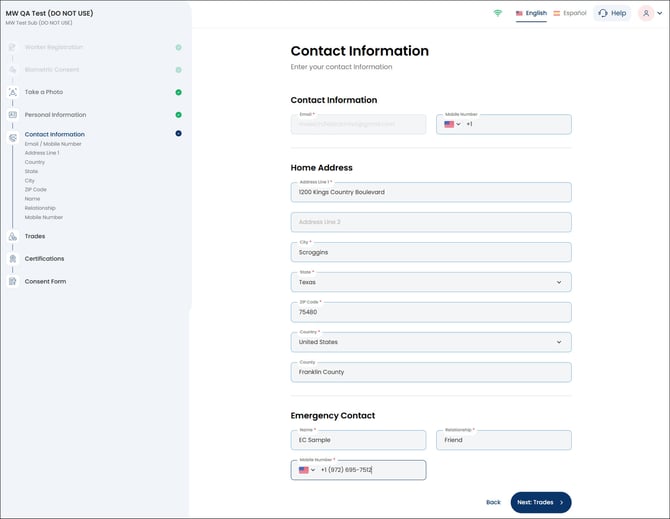
- Complete contact information fields based on project requirements.
Trades
-
Complete trade information fields based on project requirements.
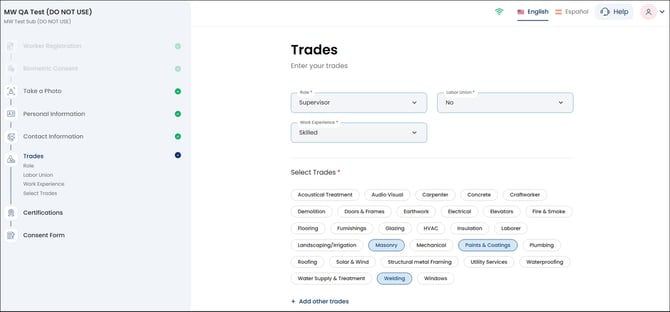
Select Add other trades, if desired. The system will check for duplicates if you enter a trade that exists already.
Certifications
-
A worker can add certifications to his/her profile allowing for easy access at any time. In order for a badge to be issues, worker's must upload certifications based on project requirements.
The information on this page displays according to the Project Setup.
Select View More to display all required certifications.
Consent Form
-
Complete all required project consent form fields, then review and sign the FCA project consent form.
Welcome Aboard
After signing the consent form, a Welcome Aboard message will appear, informing the worker of any outstanding requirements that must be completed before a badge can be issued.
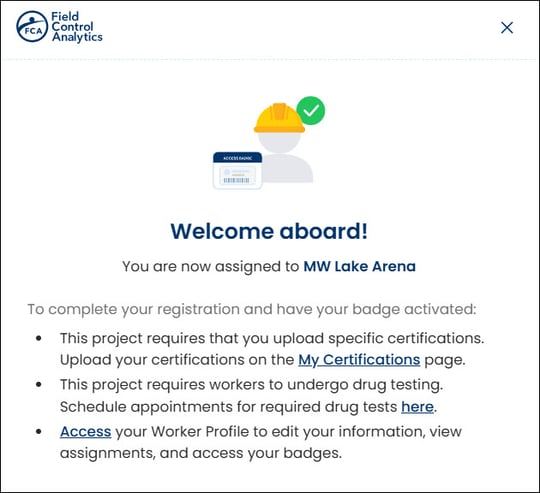
A worker can select Access to open their profile, edit their information, view assignments, and access their e-badge.
If the worker accesses their profile to complete additional requirements, the admin must log in again to proceed with onboarding new workers.
If the worker does not need to access their profile, the admin should select Close (X), then select Done.