![Favicon.png]](https://help.fieldcontrolanalytics.com/hs-fs/hubfs/Favicon.png?height=50&name=Favicon.png)
Overview:
Use this guide to register for a project, complete your worker profile, finish project requirements, and access your digital badge.
If you already have a profile on the FCA platform, do not register again. Sign in instead, then complete any requirements for the new project.
Project-Specific QR Code
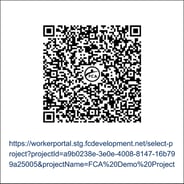
The project-specific QR code can be provided to the worker from multiple different sources. Each worker will receive the QR code in the project invitation, their employer can provide the project QR code, or they can access at the jobsite.
Worker Registration
Existing Workers
Follow the registration steps below to create your profile and join the project.
Open the project invitation or scan the project-specific QR code. The QR code may be provided in your project invitation, by your employer, or at the jobsite.
New Workers
Select Company, click Next
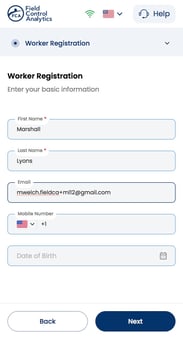
Complete the required fields, then select Next.
-
Required fields should be clearly identified on the page. Use information that matches your government-issued ID.
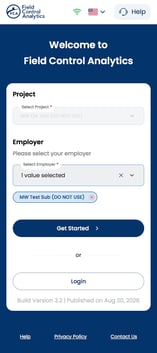
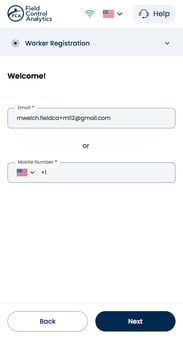
Workers with existing profiles, can login and complete project specific requirements
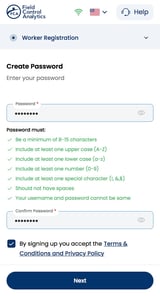
Create Password
Create a password that you will use to access the Worker Portal or FCA Worker app in the future. Store your password securely.
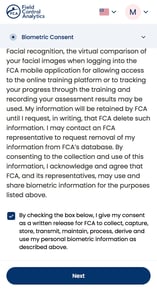
Biometric Consent
Read the FCA Biometric Consent information. You must acknowledge the consent before continuing to the photo and personal-information steps.
Add your Photo
Take a new photo or upload an existing photo.
Use a clear, current image that meets the project’s badge requirements. This photo may be used for your physical badge.
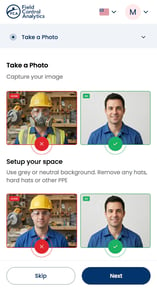
You can take a new photo or upload an existing photo.
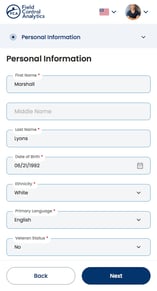
Personal Information
Enter the required personal information. Information already associated with your profile may be filled in automatically. Review all pre-filled information and update it if needed.
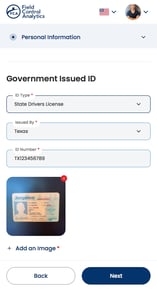
For your government-issued ID, take a new photo or upload an existing image as directed on the page.
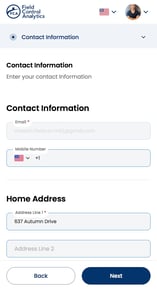
Contact Information
Enter the required contact information and verify that it is accurate. You may need access to a verified contact method later if you request a one-time PIN to view or edit personal information.
Trades
Enter your trades by clicking the pill will the appropriate trade. You can choose more than one trade for your profile.
-
If you need to remove a trade, simply click on the trade pill and it will unselect the trade.
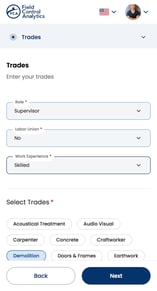
Select Add other trades, if desired. The system will check for duplicates if you enter a trade that exists already.
Certifications
Upload the certifications required for the project. You may also upload additional certifications to keep them available in your profile for future projects.
-
In order for a badge to be issued, a worker must upload certifications based on project requirements.
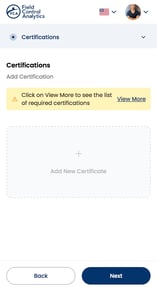
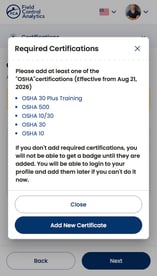
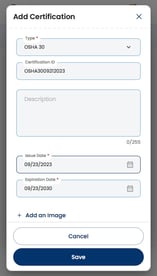
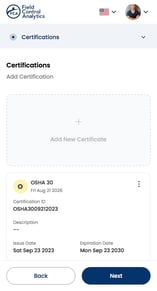
The information on this page displays according to the Project Setup.
Select View More to display all required certifications.
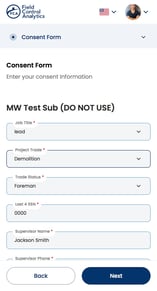
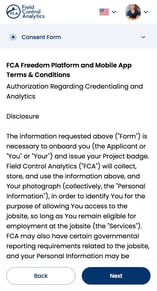
Consent Form
Complete all required fields on the project consent form. Review the form carefully, then sign it.
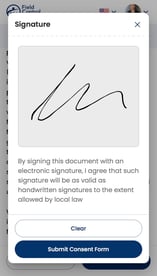
Welcome Aboard
After you sign the consent form, the Welcome Aboard message shows whether anything is still required before your badge can be issued.
Review each outstanding requirement and complete it as soon as possible. Signing the consent form does not necessarily mean that your badge is ready. Your badge can be issued only after all project requirements are complete.
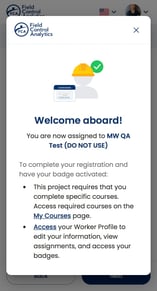
Accessing Your Worker Profile
After registration, select Access from the Welcome Aboard message to open your worker profile.
An existing worker can use the worker portal link at any time to access the below information.
From the Worker Portal, you can go to:
My Projects
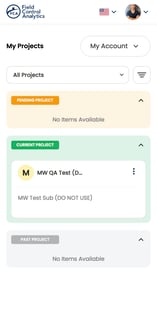
In the My Projects section, a worker can view project statuses
-
Pending Projects: Projects that still require action or approval
-
Current Projects: Projects you are actively associated with
-
Past Projects: Projects you previously completed or were associated with
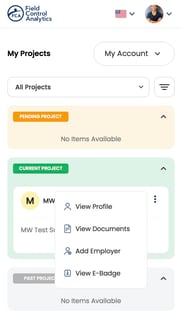
Open the More menu, shown as three dots on a project card, to view project-related options:
-
View Profile
-
View Documents
-
Add Employer
-
View E-Badge
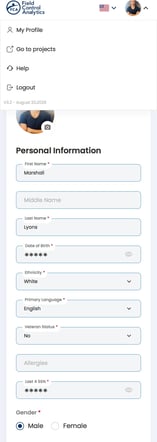
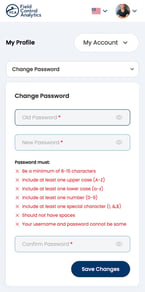
My Profile
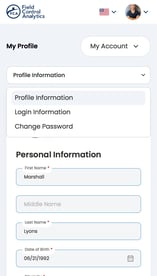
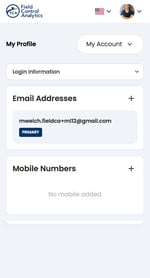
Use My Profile to review and update your profile information and login credentials.
You can change your password from this section.
To view or edit personal information, request a one-time PIN sent to your verified contact method. Enter the PIN to unlock the personal-information fields.
To view or edit PII, a worker must request a One-Time Pin to be sent to his/her verified contact method. Once the pin is entered, the PII information will be visible and editable for the worker.
My Certifications
From My Certifications, you can:
-
Edit or delete an existing certification
-
Add another certification
-
Review certification information for your projects
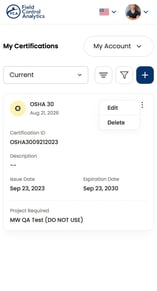
Keep your certifications current and replace documents when they expire or change.
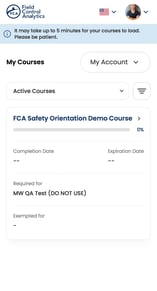
My Courses
If a project requires online courses, open My Courses to view the courses assigned to you and complete any remaining training.
 Help & Logout
A worker can access his/her profile, the FCA Help option and Logout using the dropdown next to worker's photo.